Reporch LMS
Submit an assignment
Send a file or automated-judge submission and verify the resulting record.
Overview
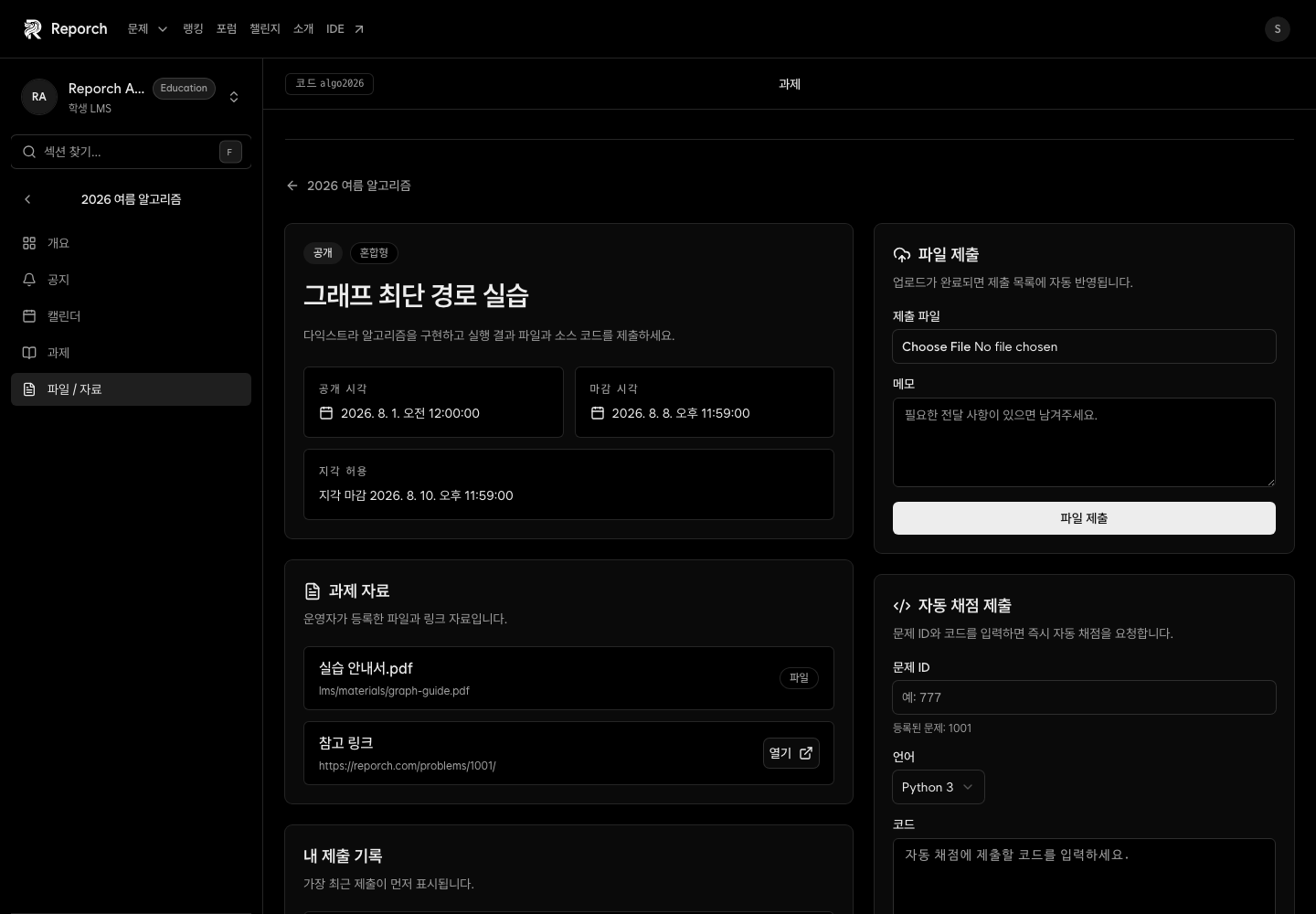
Assignment detail combines instructions, materials, schedule, submission history, and the controls appropriate to its type. Upload work sends a file and optional note. Problem work sends a problem ID, language, and source code to the judge.
Before you start
- The assignment is available and before the applicable deadline.
- Prepare a file for Upload or valid code and a problem ID for Problem.
- Use a stable connection and check remaining attempts.
Steps
1. Read the requirements
Check description, materials, type, availability, due time, and late policy.
2. Complete the correct panel
Choose a file and add a note for Upload. For Problem, use a registered problem ID, select the language, and enter the source. Check both panels for Hybrid work.
3. Submit once
Select Submit or Request automated grading once, then wait. Avoid repeated clicks during upload or judging.
4. Verify the result
For files, inspect submission status, time, and file name. For code, record the submission ID and wait for status and score to finish processing.
Expected result
- File submissions appear with status, time, and file name.
- Code submissions receive an ID, then a final judge status and score.
- Each required result can be checked independently for Hybrid work.
Troubleshooting
- No submission controls: Check type, availability, deadline, late policy, and attempts.
- Upload failed: Re-select the file, check the connection, and inspect history first.
- Judge remains pending: Record the ID, use refresh, and wait before retrying.
- Wrong problem: Use the registered problem ID shown in the panel.
- Unexpected score: Share the selected language, source, and submission ID with the instructor.