Reporch LMS
Get started with Reporch LMS
Understand the learner portal, admin console, and role-based LMS routes.
Overview
Reporch LMS is the organization workspace for classrooms, announcements, schedules, assignments, members, and results. Learners work on the organization-specific LMS host. Organization owners and admins, plus classroom instructors and TAs, use the admin console.
Before you start
- A Reporch account in the organization
- An active classroom membership for learner access
- An owner, admin, instructor, or TA role for management
- The learner host or admin URL supplied by the organization
Steps
1. Choose the correct surface
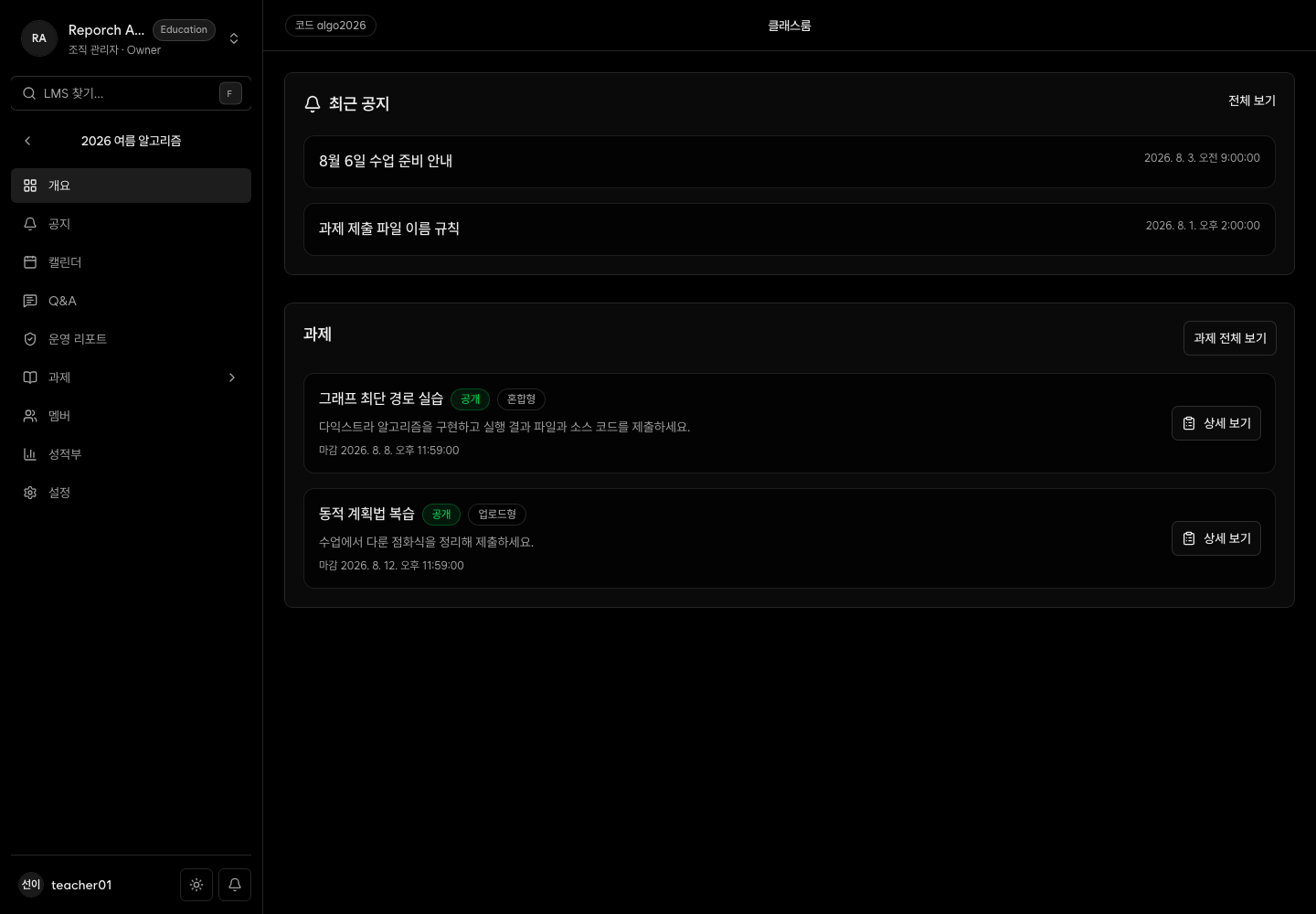
Learners open the organization LMS home. Operators go to Organization Admin → LMS. The visible navigation and allowed actions depend on the current role.
2. Find a classroom
The learner home lists assigned classrooms, status, and classroom code. The admin LMS home lists organization classrooms and lets organization owners or admins create one.
3. Open the classroom
Learners get Overview, Announcements, Calendar, and Assignments. Admin navigation also includes Q&A, Operations Report, Members, Gradebook, and Settings.
4. Continue with your role guide
Learners should read Use the classroom overview. Operators should continue to Get started as an LMS admin.
Expected result
- Learners open only classrooms assigned to their account.
- Instructors and TAs manage the classrooms assigned to them.
- Organization owners and admins can create and archive classrooms.
Troubleshooting
- No LMS navigation: Check the organization membership and role.
- Classroom will not open: Ask an operator to confirm that membership status is active.
- Learner page unavailable: Confirm that the URL uses the organization host.
- No edit controls: The account may be a learner or may not manage this classroom.