Reporch LMS
Review submissions and results
Inspect submitter, status, time, files, and automated-judge results for an assignment.
Overview
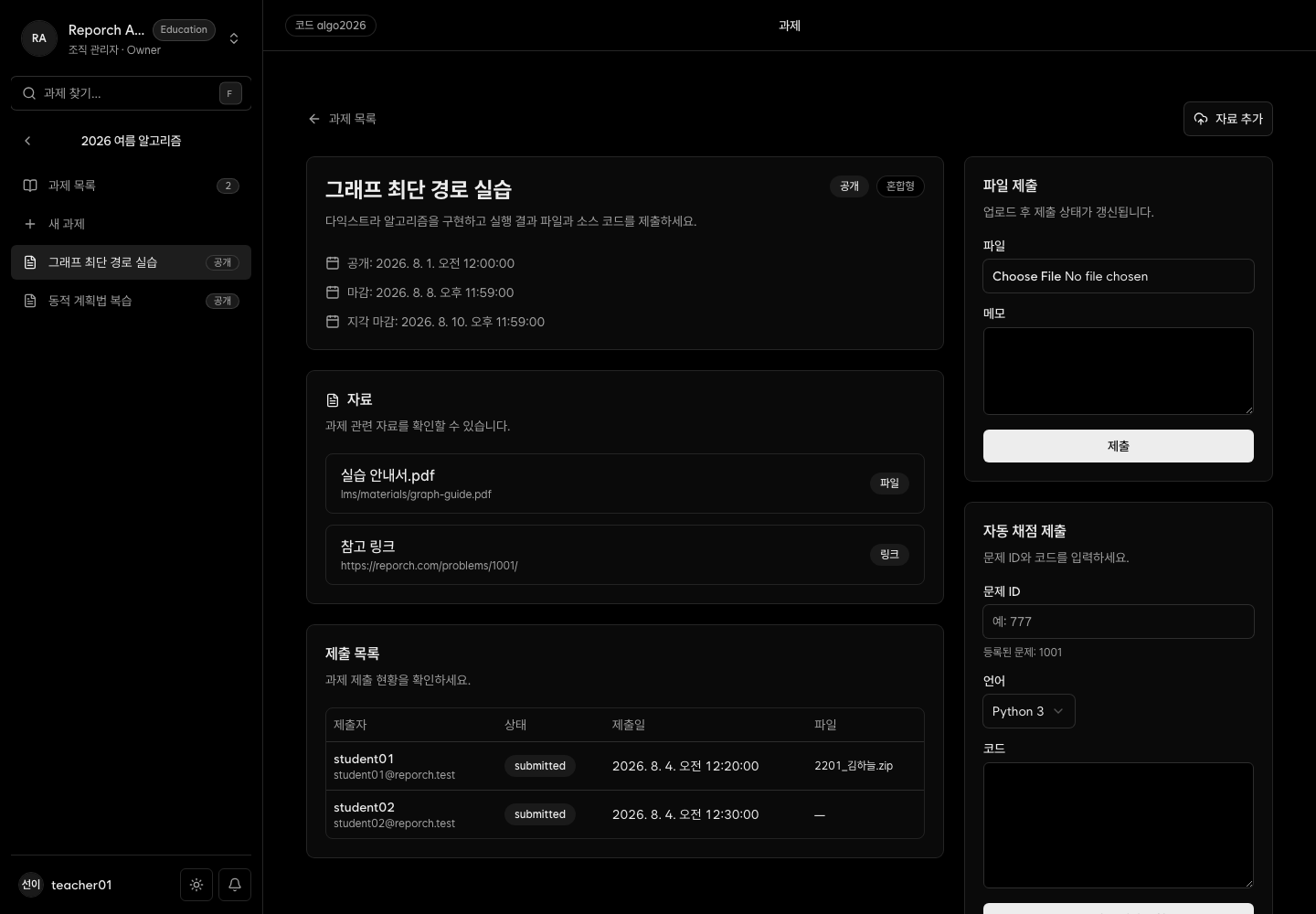
Admin assignment detail shows the assignment schedule and materials plus submitter, status, time, and file names. Automated submissions expose judge status and score. The current table does not include per-row manual score inputs; use Gradebook to review summarized results.
Before you start
- Access to the admin assignment
- At least one learner submission
- Processing time for automated judging
Steps
1. Verify the assignment
Open it from Assignments and review type, status, availability, due times, and materials.
2. Inspect the submission list
Compare name or email, status, and submission time. Account for multiple attempts and the grading policy.
3. Review file metadata
For Upload or Hybrid work, verify submitted file names and follow the organization's review procedure for file contents.
4. Check automated status
For Problem work, wait for a final status. A learner's submission ID, problem ID, and runtime help trace failures.
5. Cross-check Gradebook
Verify that the expected result appears for the learner. Both current views are primarily read-only.
Expected result
- Submitter, time, status, and file metadata can be audited.
- Upload and judge results are distinguished.
- Gradebook interpretation follows the assignment's policy.
Troubleshooting
- Submission missing: Verify account, time, assignment ID, and refresh.
- Judge remains pending: Record the submission ID and check again later.
- No manual score input: The current detail view has no inline manual-grading control.
- Gradebook differs: Inspect all attempts and the grading policy.