Reporch LMS
Review the gradebook
Compare assignment, assessment, and external-outcome results by learner.
Overview
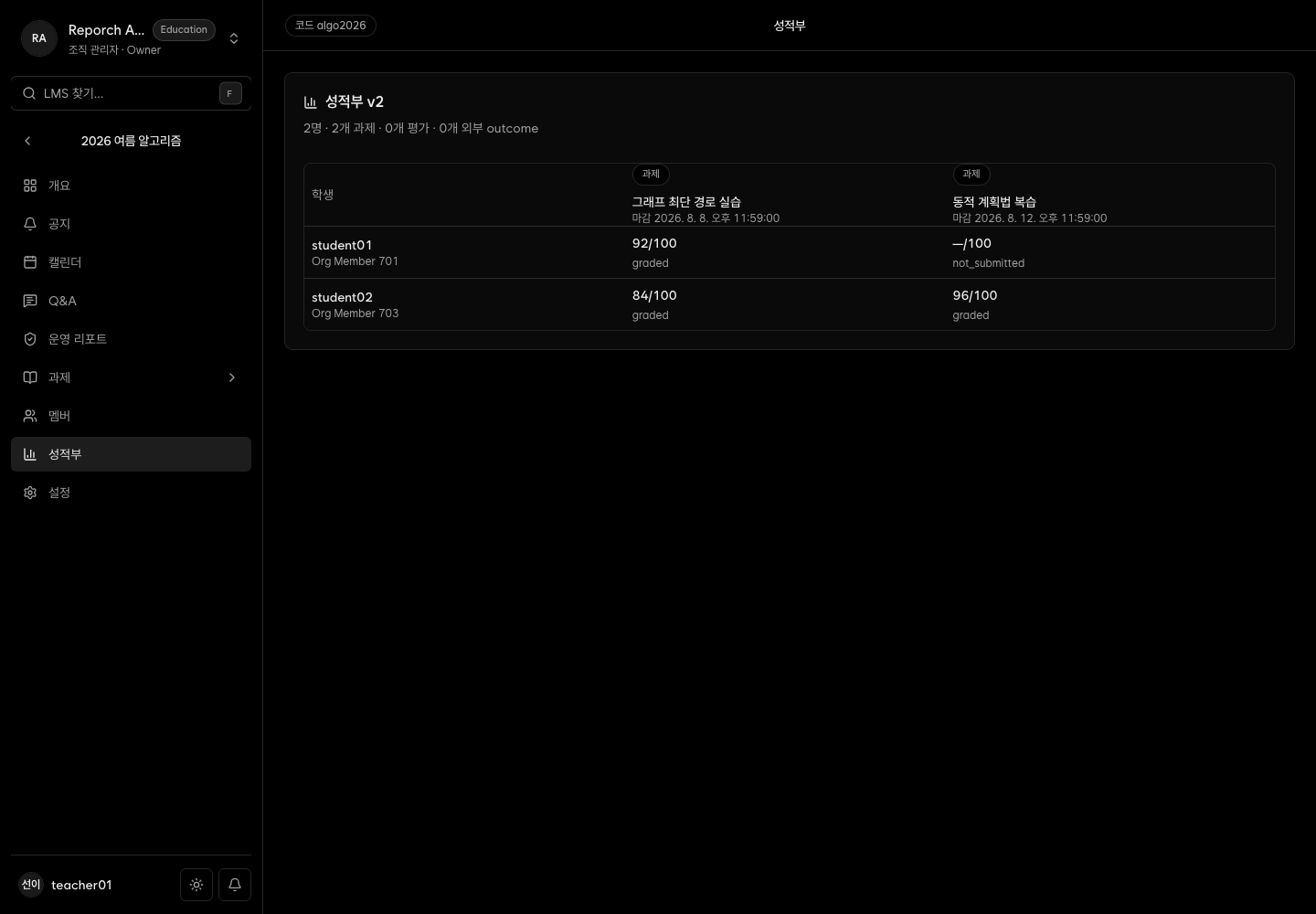
Gradebook v2 uses learner rows and assignment, assessment, or external-outcome columns. The current table is a review surface and does not provide inline cell editing.
Before you start
- Classroom-management access
- Active learner members
- Submission, judge, assessment, or connected outcome data
Steps
1. Open Gradebook
Select Gradebook and use name plus email to distinguish learners.
2. Identify each column
Read its title and type before comparing scores; assignment and external outcomes can come from different sources.
3. Review learner rows
Find scores and empty cells. An empty cell does not necessarily mean zero; inspect the source assignment.
4. Verify source data
Open the corresponding assignment and submission list and check its grading policy. Do not expect to overwrite a value in this table.
Expected result
- Results can be compared across learners and outcome types.
- Missing-result candidates can be identified.
- Source submissions and policy provide the audit trail.
Troubleshooting
- Learner missing: Check learner role and active membership.
- Assignment column missing: Verify assignment and result generation.
- Cannot edit a value: The current Gradebook is read-only.
- Unexpected score: Check Latest, Highest, or Average and all attempts.