Reporch LMS
Review the operations report
Inspect a snapshot of members, assignments, submissions, and open Q&A.
Overview
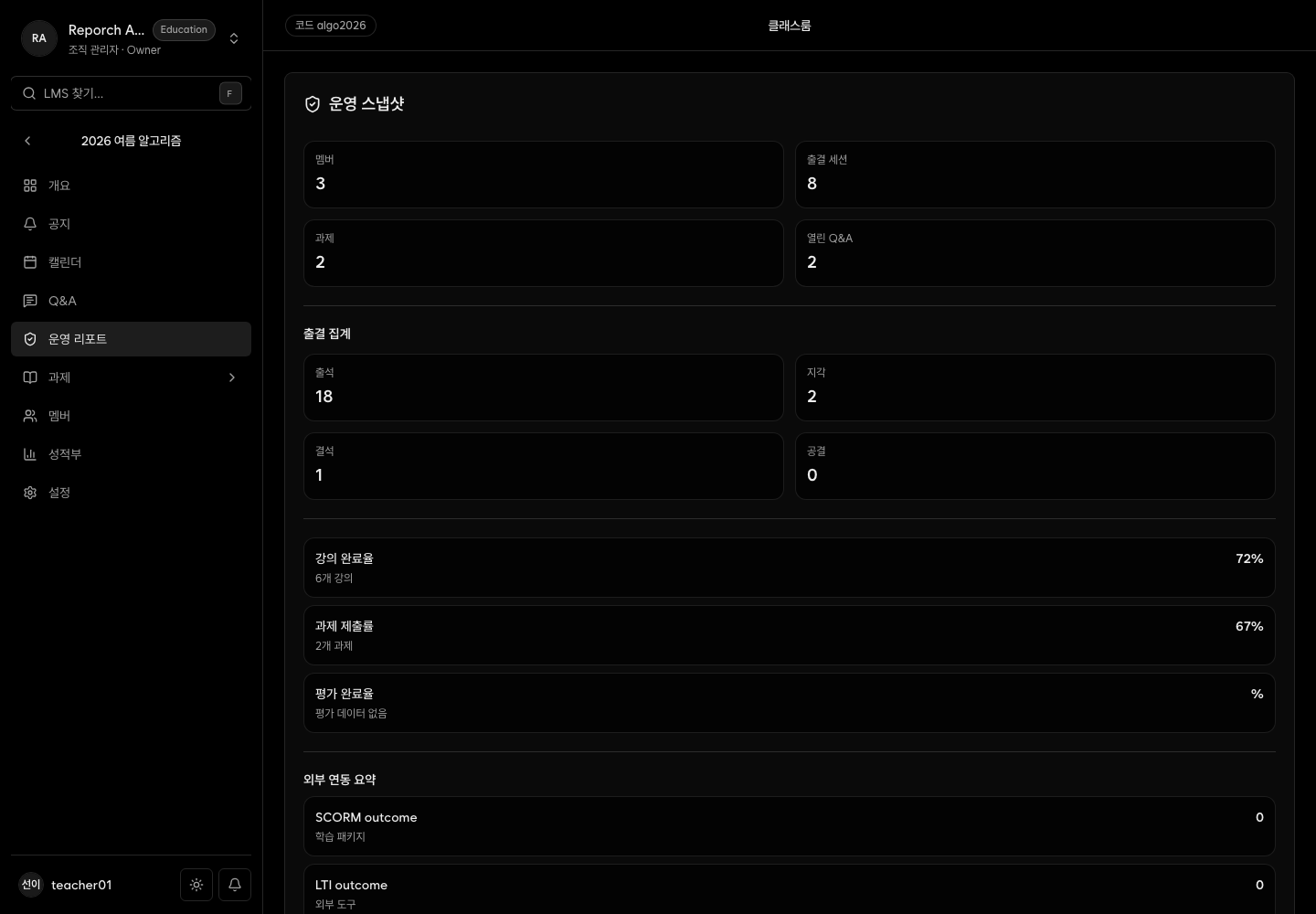
Operations Report summarizes current classroom member and assignment activity plus open Q&A. The current page has no date filter, CSV export, or report-editing controls.
Before you start
- Access to classroom operational data
- Member, assignment, submission, and Q&A lists for comparison
- An understanding that this is a current snapshot, not a time-series report
Steps
1. Open Operations Report
Select the page and wait until the snapshot finishes loading.
2. Review key counts
Check members, assignment status, submission-related summary, and open Q&A.
3. Inspect source lists
Use Members, Assignments, Q&A, and Gradebook to investigate a count. The cards themselves do not edit data.
4. Review consistently
Use the same checkpoints before publication, after deadlines, and before closing a class.
Expected result
- Current classroom health can be assessed quickly.
- Open Q&A and assignment issues lead to their source screens.
- Count differences can be investigated rather than treated as editable report data.
Troubleshooting
- Report unavailable: Check access and network, then refresh.
- Count differs from a list: Account for load time and status filters.
- No CSV download: The current UI provides snapshot review only.
- Need to change a count: Update its underlying member, assignment, or Q&A data.