Reporch LMS
Use the classroom overview
Review recent announcements, shortcuts, and active assignments from one page.
Overview
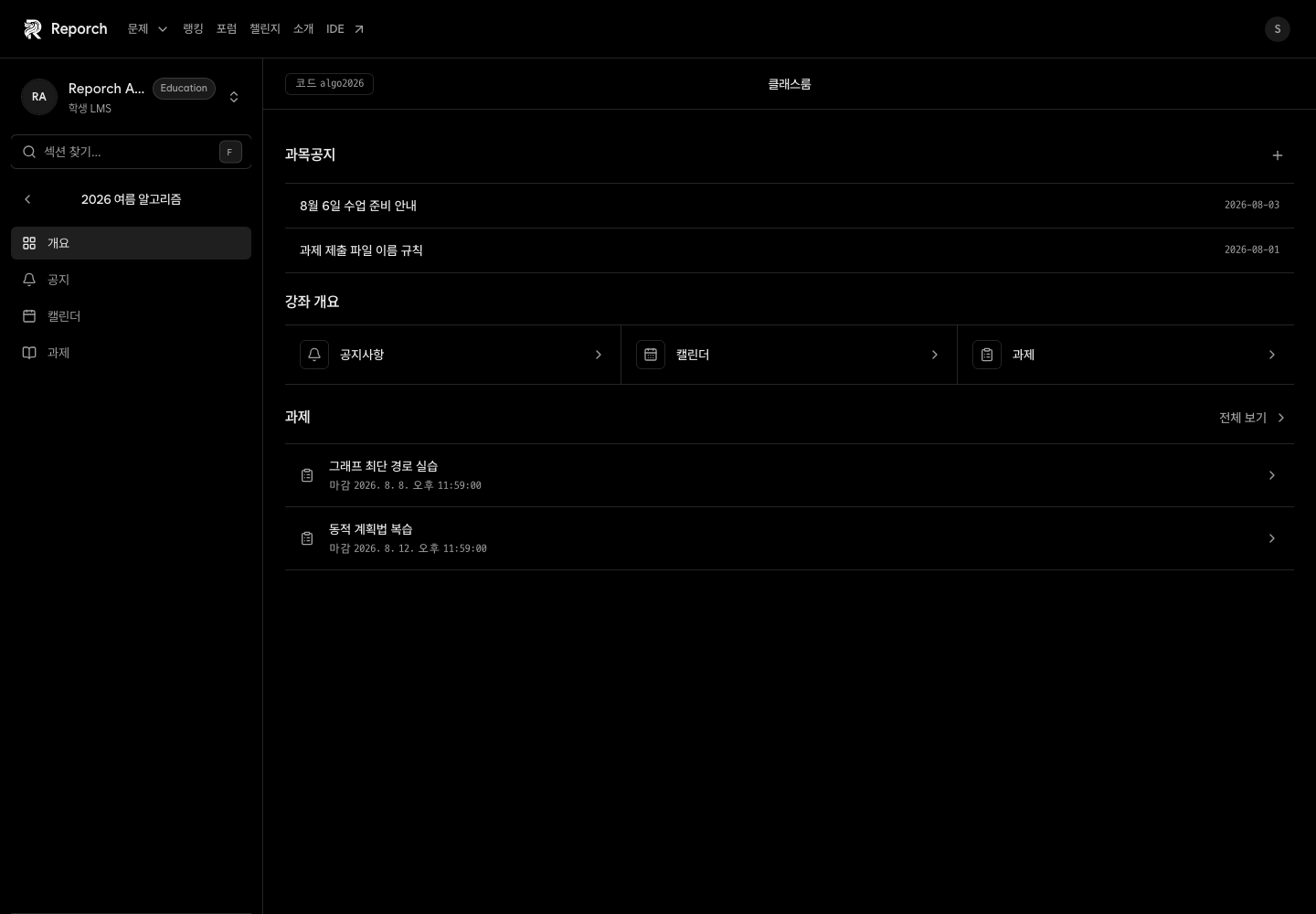
The classroom overview collects the first things a learner should check: up to three recent announcements, shortcuts to core sections, and assignment status.
Before you start
- Sign in to the learner LMS.
- Open an assigned active classroom.
- Wait for an operator to publish announcements or assignments.
Steps
1. Confirm the classroom
Check the name and description at the top, especially when you belong to multiple classes.
2. Read recent announcements
Review the title, time, and priority markers. Open Announcements for the complete history.
3. Use the shortcuts
Open Announcements, Calendar, or Assignments from the shortcut area or the left navigation.
4. Check assignment status
Open an assignment to verify its type, materials, due time, late policy, and remaining attempts.
Expected result
- Recent notices and important changes are easy to find.
- Core learning pages are one action away.
- Published assignment deadlines are visible.
Troubleshooting
- No recent announcements: None may be published yet, or a scheduled post may not be live.
- No assignments: Check whether the item is a draft, archived, teacher-only, or private. A published member assignment can appear before availability so learners can inspect its schedule, while submission remains closed.
- Stale information: Refresh, then inspect the full announcement and assignment lists.
- Different navigation: Learner and admin menus are intentionally different.