Reporch LMS
Understand the assignment list
Distinguish upload, problem, and hybrid assignments and their schedules.
Overview
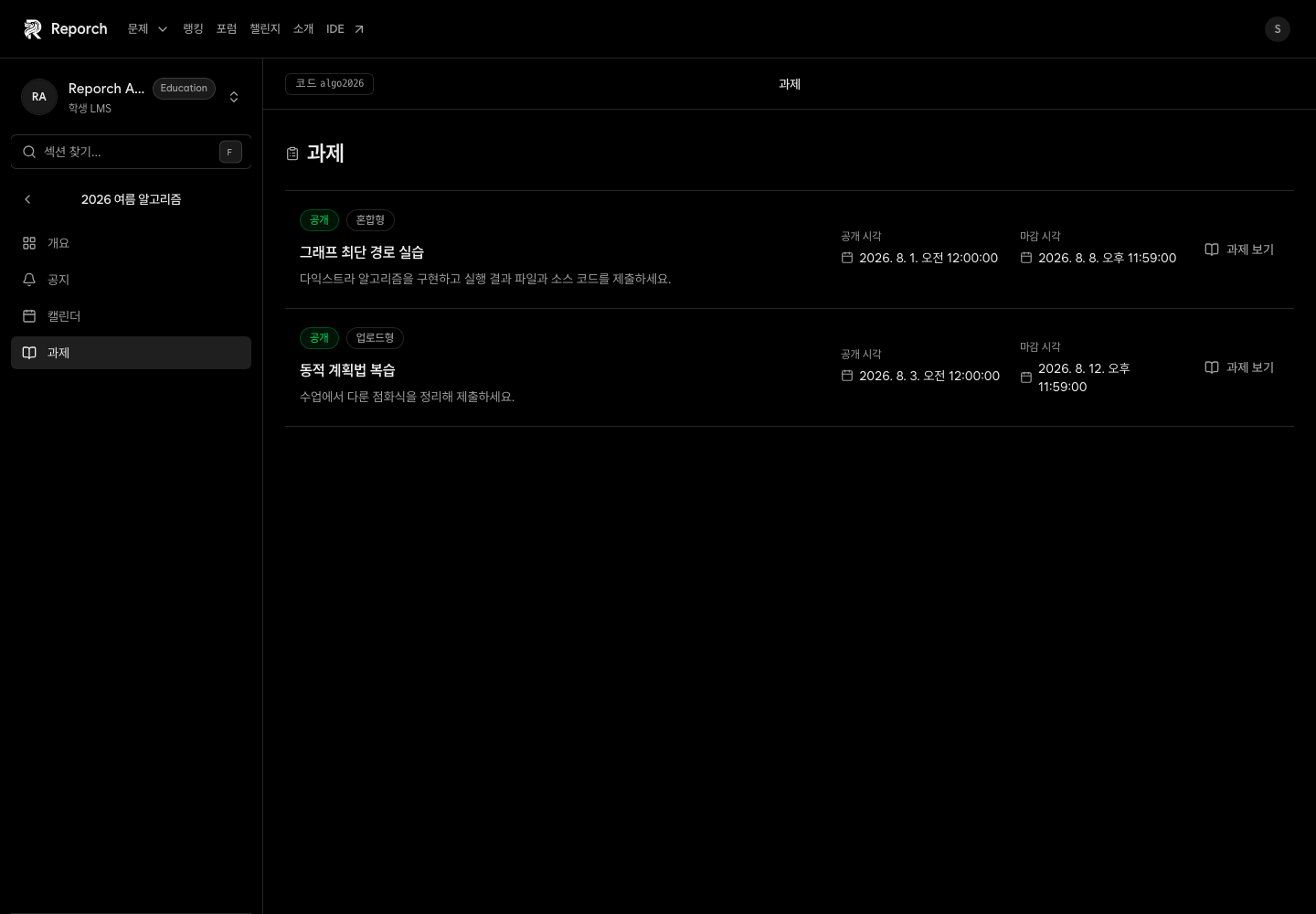
The assignment list shows work published to the learner. Upload assignments accept files, Problem assignments accept code for automated judging, and Hybrid assignments can expose both workflows.
Before you start
- Active learner membership
- A published assignment visible to members. Its list and detail can appear before availability, but submission remains closed.
- Any instructions supplied by the instructor
Steps
1. Open Assignments
Select Assignments and find the item by title, type, status, and due time.
2. Identify the submission type
Upload requires a file. Problem requires a problem ID, runtime, and source code. Hybrid can require both; follow the instructor's instructions.
3. Check schedule and attempts
Open the assignment and inspect availability, due time, late submission, late deadline, and any attempt limit. Before availability, you can read the assignment but cannot submit it.
4. Review materials and registered problems
Open attached files or links. For code work, use the registered problem IDs displayed by the submission panel.
Expected result
- File and automated-judge submissions are not confused.
- Availability, regular due, and late due times are understood.
- Materials, problem IDs, and attempt limits are checked first.
Troubleshooting
- Assignment missing: It may be scheduled, draft, archived, teacher-only, or private.
- Cannot submit after due time: Check whether late submission is enabled and still open.
- Unexpected submission panel: Confirm the assignment type with the instructor.
- Attempts appear consumed: Check existing submissions before trying again.