Reporch LMS
Access the learner LMS
Use the organization-specific host to open classrooms assigned to your account.
Overview
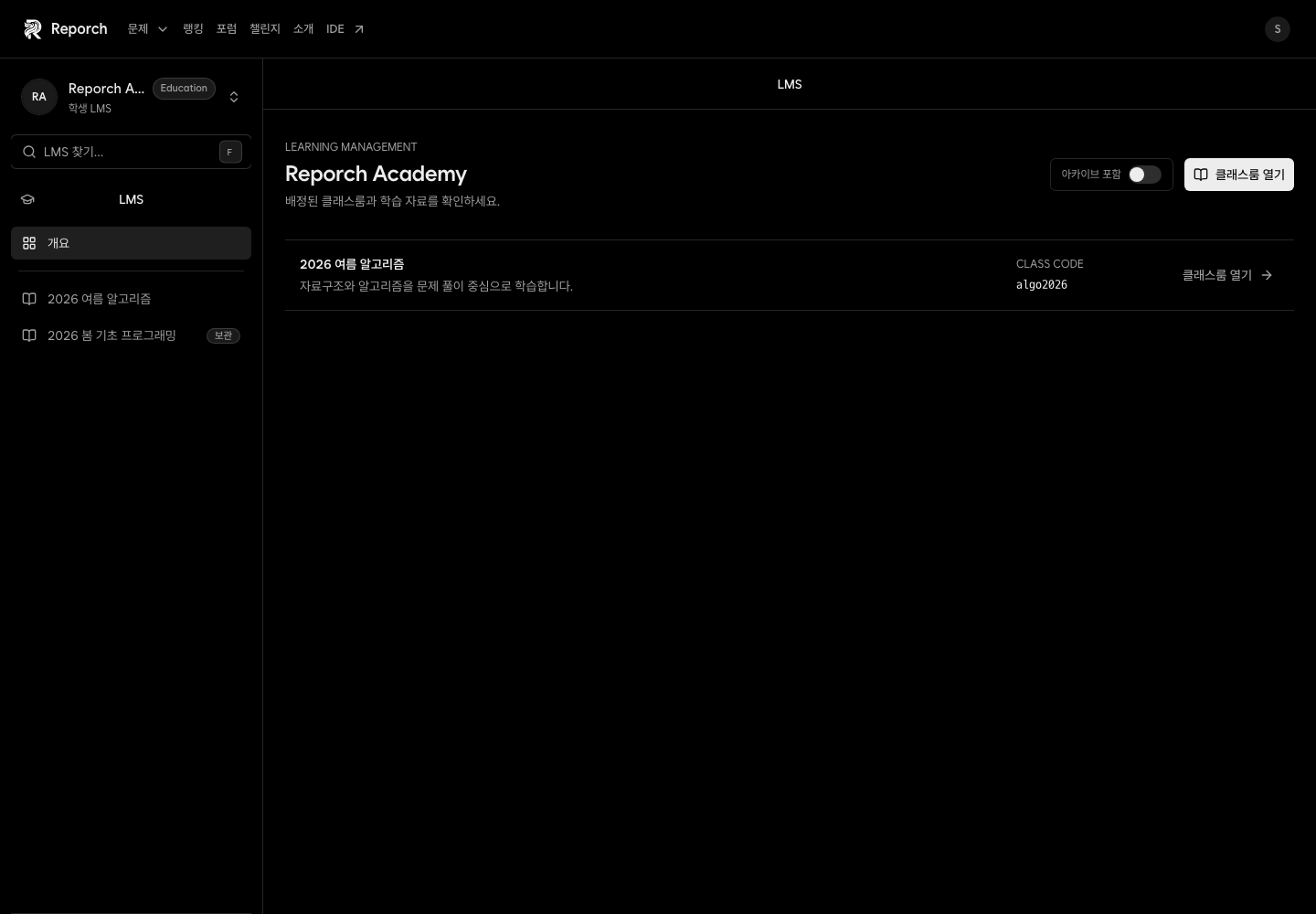
Each organization provides its own learner LMS address. After sign-in, the home page separates active and archived classrooms assigned to the current account. The displayed classroom code identifies a class; the current learner home does not include a field for joining by code.
Before you start
- The organization-specific learner LMS address
- The Reporch account registered with that organization
- An active classroom membership assigned by an operator
Steps
1. Open the organization address
Use the URL supplied by your school or organization. Confirm that it is the learner host, not a classroom path on the general Reporch site.
2. Sign in with the assigned account
Use the email registered by the organization. A different personal account can produce an empty classroom list.
3. Find the active classroom
Check its name, description, status, and code. Active classrooms appear first; use the archive switch to inspect completed classes.
4. Open the classroom
Select the classroom. If you only have a code and see no class, send the code and your account email to an operator so they can assign the organization member.
Expected result
- Assigned classrooms appear on the learner home.
- Active and archived classes can be viewed separately.
- Opening a class displays Overview, Announcements, Calendar, and Assignments.
Troubleshooting
- No classrooms: Verify the account email and ask an operator to assign it.
- Nowhere to enter a code: The current learner UI does not offer direct code enrollment.
- Unavailable on the general site: Reopen the organization-specific learner host.
- Visible but inaccessible: Ask whether membership is pending or suspended.