Reporch IDE
Import a GitHub repository
Clone code from a connected GitHub repository or Remote URL into a new IDE workspace.
Overview
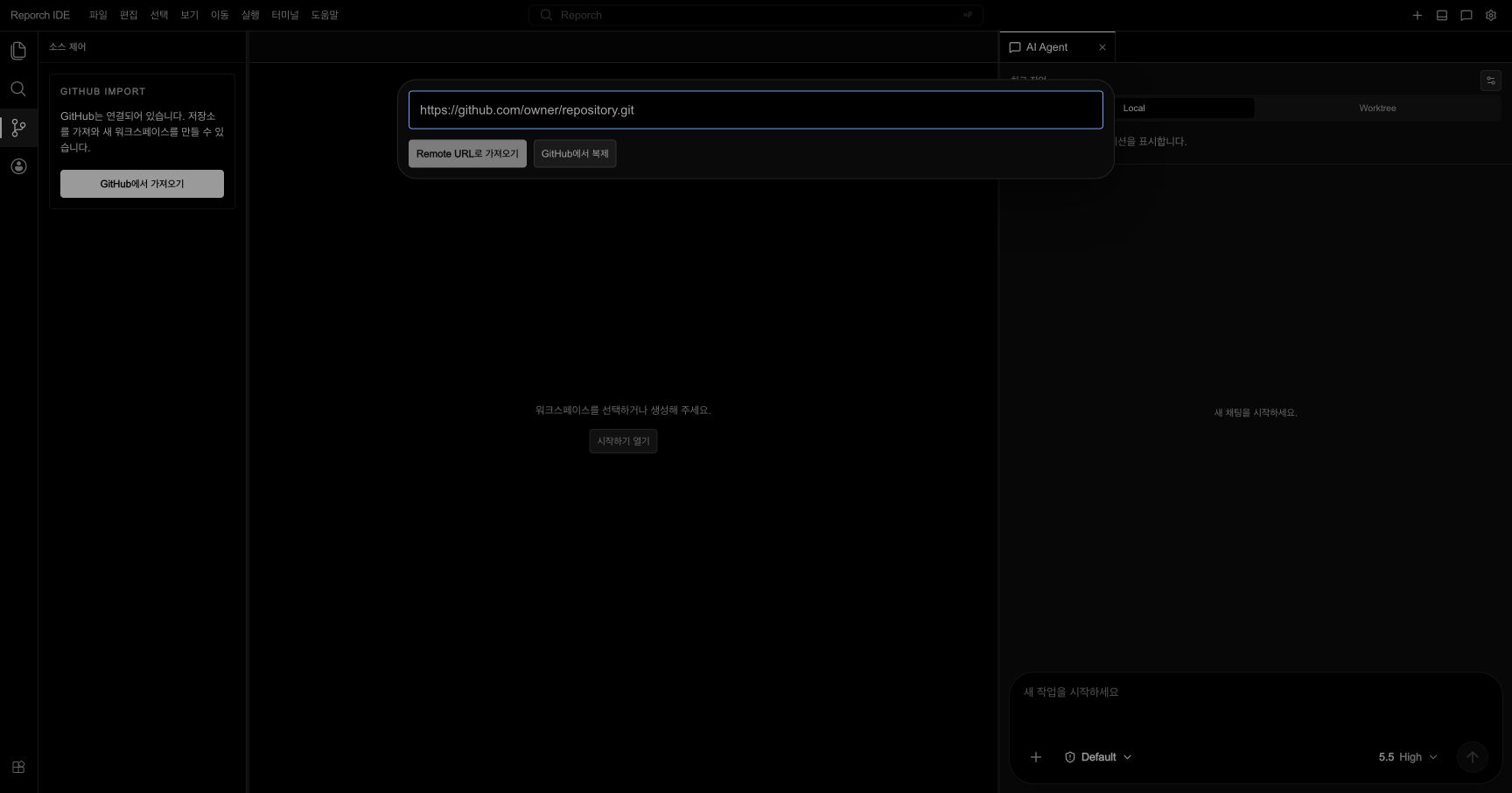
Use Import from GitHub when the project already exists in Git instead of starting from a template. You can choose a repository available to the connected GitHub account or enter an https Remote URL.
Before you start
- Connect GitHub to use its repository list.
- Confirm read access to the repository's default branch.
- Use an
httpsURL such ashttps://github.com/owner/repository.git. - Identify the runtime, package manager, and required environment variables for the imported project.
Steps
1. Open Import from GitHub
Select Import from GitHub on the IDE start screen. In an active workspace, open the import flow from Source Control.
2. Choose Clone from GitHub
Select Clone from GitHub and wait for repositories to load. Use Refresh List if the displayed list is stale.
3. Verify the repository
Check owner, repository name, visibility, and intended branch. Distinguish similarly named forks by owner.
4. Create the workspace
Select the repository to begin. Do not repeat the action while cloning and DevBox preparation are in progress.
5. Verify the clone
Confirm root files in Explorer, then inspect remote information and current branch in Source Control. Use documented installation and run commands in the terminal.
Import with a Remote URL
1. Enter the URL
Paste the complete https clone URL into Import from Remote URL. If you copied the browser repository URL, append .git if the interface requires the clone form.
2. Validate it
Check protocol, owner, and repository name. A value without a protocol or a file path is not a repository URL.
3. Start the import
Use the action beside the field and wait for workspace creation. A private repository still requires access through the connected GitHub account.
Expected result
- Root configuration such as
package.jsonorpyproject.toml - Current branch and remote in Source Control
- Installation and run commands from README
- Required key names in
.env.example - Development server port and Preview availability
Troubleshooting
- Repository not found: Check the owner, name, and account read permission.
- Private repository is absent: Review GitHub access scope and refresh the list.
- Files are empty after clone: Wait for runtime readiness, then refresh Explorer.
- Project does not run: Import does not supply dependencies or secrets automatically. Follow README and attach the required environment variables.